
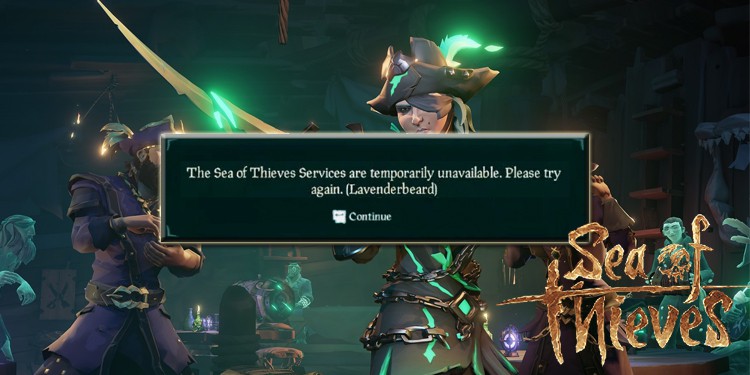
If you are a Sea of Thieves player, you may have encountered an error that says, “The Sea of Thieves services are temporarily unavailable. Try again. (Lavender Beard)’ when you try to start the game. This is a common error in Sea of Thieves and can have several causes.
It usually occurs when your system cannot communicate properly with the game’s server. However, there are also cases where this error occurs if you have a proxy server or if your firewall is blocking access to the game.
How to Fix “Sea of Thieves Services Are Temporarily Unavailable”
The first thing to do if you get this error is to check if the game servers are down. If there is nothing wrong with the servers, you can try restarting the game and see if you can play the game without any errors.
However, if the error still persists, then you can try these methods to fix it.
Disable your proxy server
If you are connected to a proxy server, you may not be able to connect to the game servers properly. So disabling proxy servers might solve your problem.
To do that:
- Open Run Command Box on your Windows by pressing Windows Key + R at the same time.
- Type ‘
inetcpl.cpl’in the search box and press Enter. - This will open your Internet Properties window. Now click on the Connections tab, then LAN settings.
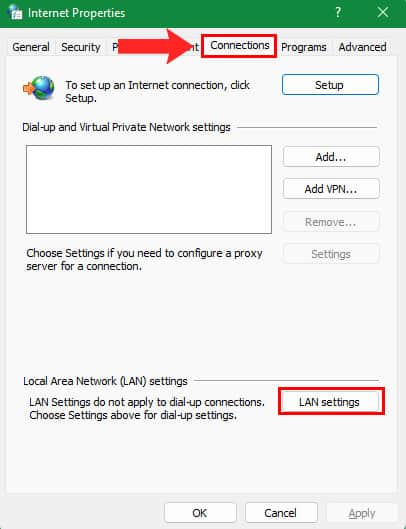
- Uncheck the box Use a proxy server option and then click Okay.
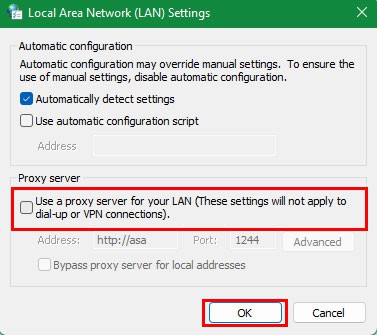
- Now in the main window click Apply, then Okay.
Launch Sea of Thieves and see if the error is gone. If you have a VPN enabled, try disabling it as well. If the error still shows, then try to move on to the next method.
Allow Sea of Thieves through your Windows Firewall
Your Windows Firewall may also be blocking access to the game’s servers. It is very important to make sure that both Steam and Sea of Thieves are allowed through your firewall.
To allow your game through the Windows Firewall:
- Simultaneously press the Windows key + R on your keyboard to open the Run Command Box.
- Type ‘
control‘ in the search box, then press Enter. - This will open your Windows Control Panel.
- Now type in the search bar ‘
Windows Firewall‘ and click Allow an app through Windows Firewall under Windows Defender Firewall.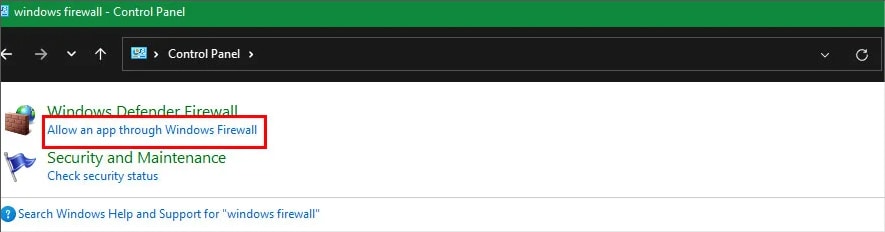
- Find Sea of Thieves and check both the Private and Public Boxes. Also find Steam and check both boxes.
- Click Okay.
Now launch the game and see if you can play it without any errors. If you can still see the error, try the next method.
Re-login to your XBOX Live account
You can also get this error if you recently changed your Microsoft account password or if the servers are unable to connect your game to your account.
To fix this, you can log out of your XBOX account and then log back in.
- launch Sea of Thieves from your desktop or Steam.
- Click on the Sign out menu to sign out of your Xbox Live account.
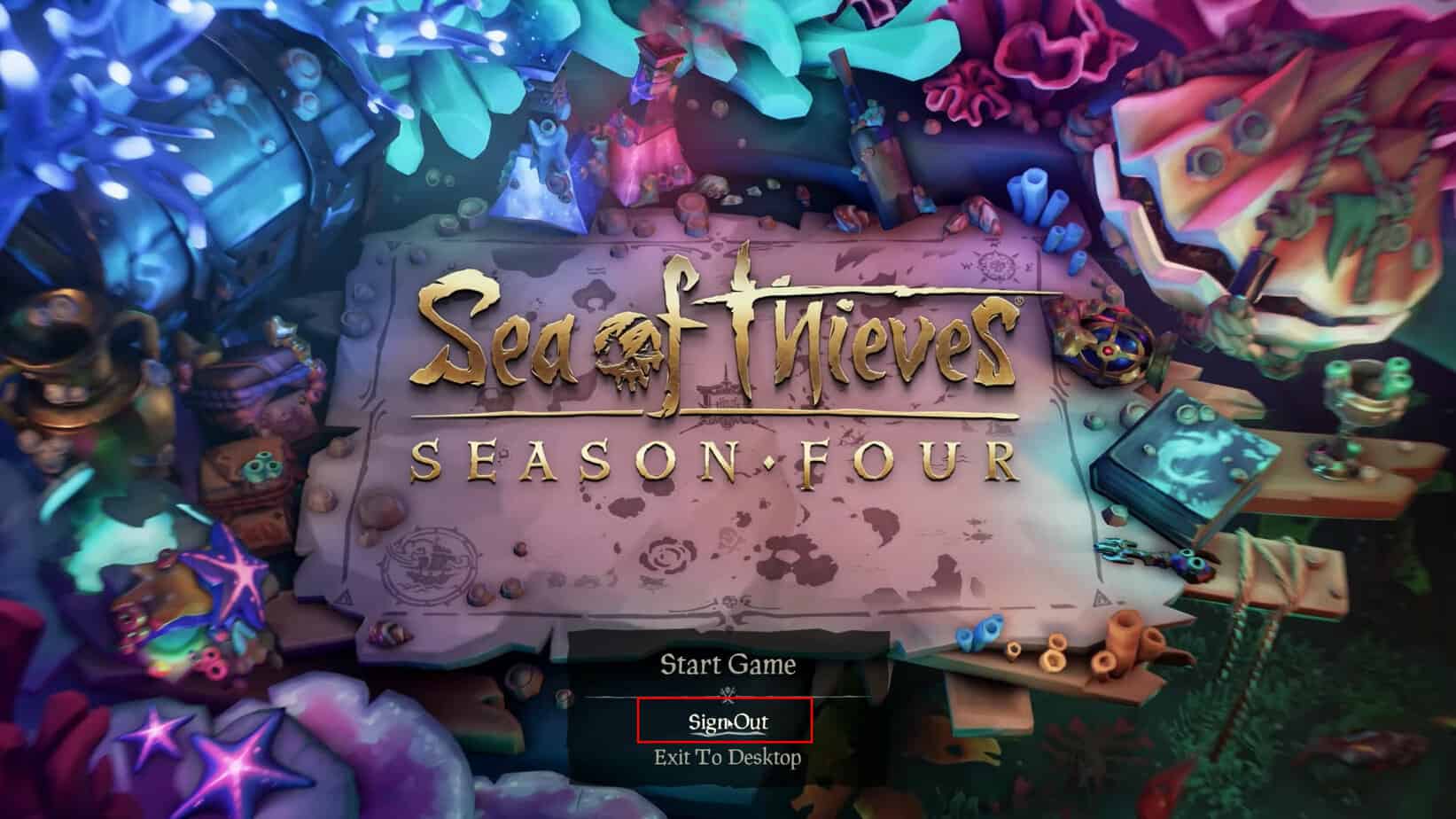
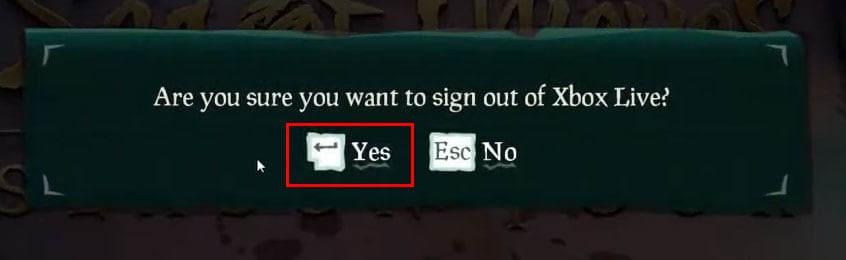
- Now you will see a pop-up message stating if you really want to sign out of your XBOX account.
- Click Yes to continue the process.
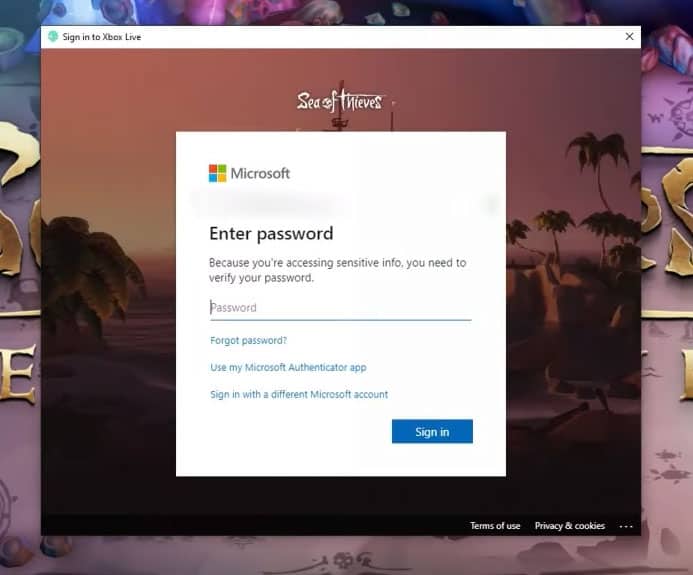
- Once you have successfully logged out of your XBOX Live account, click on the Start the game menu.
- Now you will see a login screen stating that you need to log in to your XBOX account. Log in to your account with your login details. (Also link your XBOX Live account with Steam)
Delete the Xbl_Ticket credentials
Here are the steps to change the Xbl_Ticket credentials:
- Open Start Menu on your Windows.
- In the search bar, type ‘
credential manager‘ and press Enter. - Once the Credential Manager window opens, click the Windows Credentials.
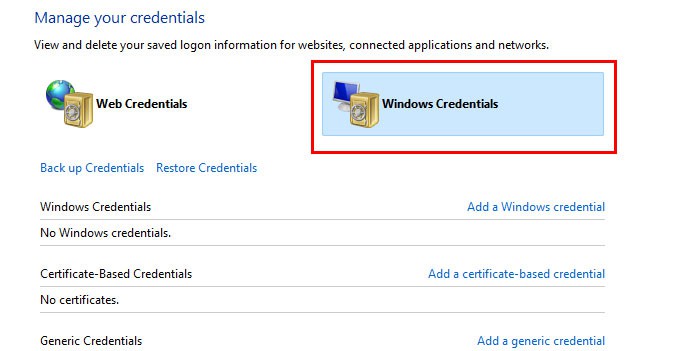
- In the General References section, look for an entry called Xbl_Ticket (followed by some numbers).
- Now expand it by clicking the little arrow and click remove.
- Click Yes in the following pop-up menu.
- Now start the game and click on the Start the game menu.
- Once you click on that, you will be prompted to sign in to your Xbox account. Log in to the account with your login details.
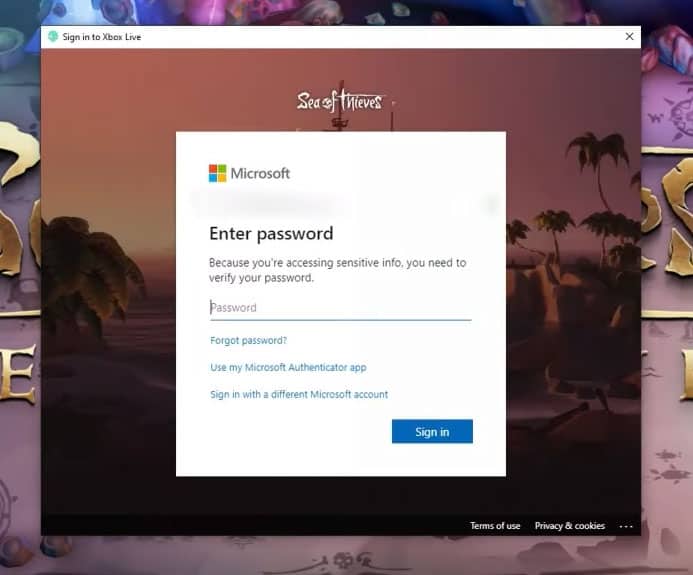
After signing up, you should be able to play the game without any problems.
Exclude Sea of Thieves from your antivirus
If you have an antivirus program installed on your PC, your game files may have been marked as malware by mistake. So you can try excluding your game folder from scanning in your antivirus setting and see if this fixes the error.
Other mistakes in Sea of Thieves
Besides the Lavenderbeard error, there are other types of errors in this game. Some of the errors you may encounter while playing Sea of Thieves are:
Coralbeard Error
You will encounter this issue whenever there is a problem with the Sea of Thieves servers. You can’t really do much on your side if you get this error, and you can expect the developers to already be working on the fix.
It will be fixed when the services are up and running again and you can play without any issues.
Alabaster Error
Alabasterbeard Error occurs when your PC is unable to communicate with the Sea of Thieves servers. It is usually caused on your end and you will encounter this error if you have a bad internet connection.
If you see this error when you try to launch Sea of Thieves, then you need to check your internet connection and make sure your internet is working properly.
0 Comments